Report Writing
On CAD, navigate to the reports tab and click CREATE REPORT in the top right:

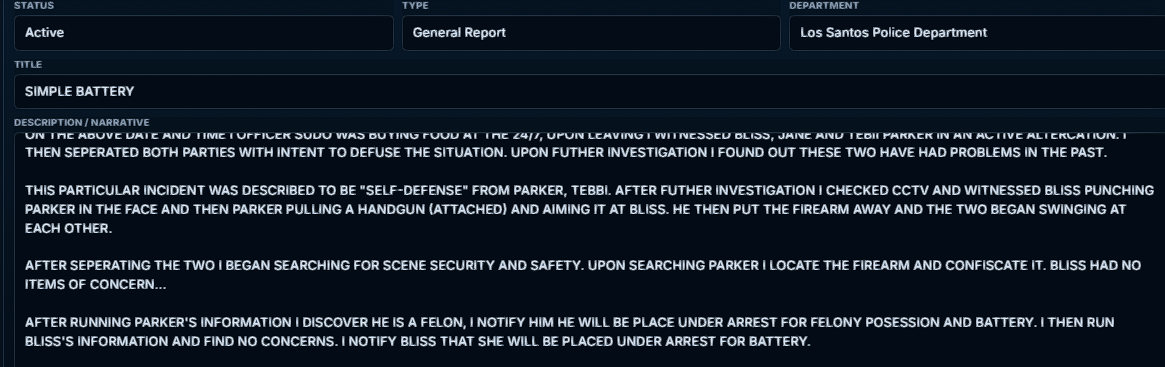
You will name the report in accordance with the incident, and write a detailed narrative about the situation, such as this:
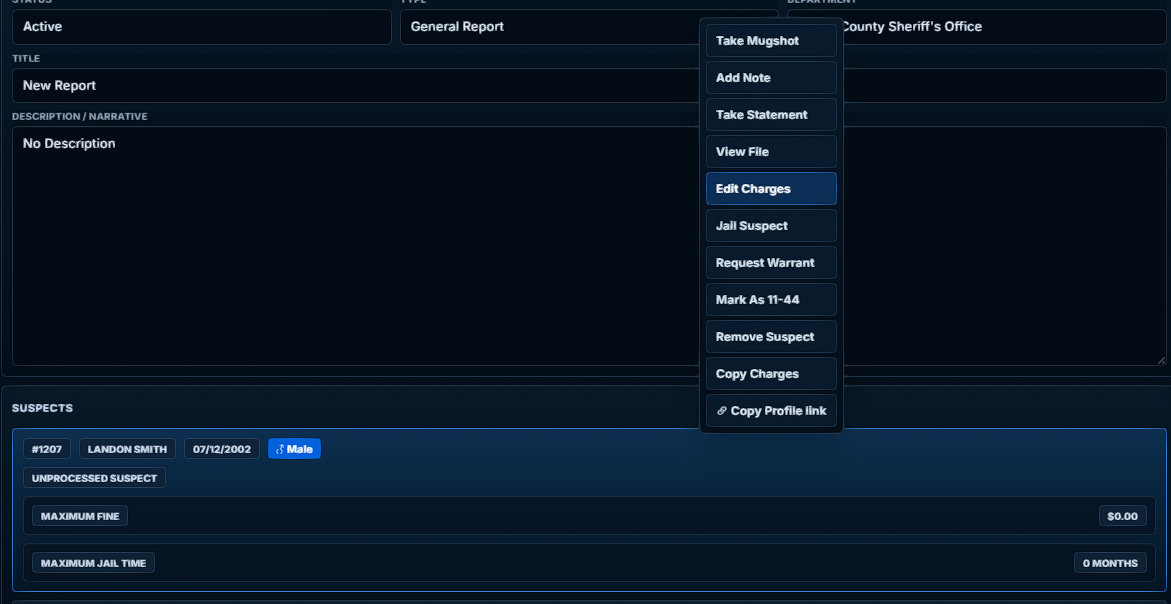
You will then add your suspect(s) by clicking the ADD SUSPECT button and typing either their name or CID. Once they are added, you will right-click on their name and click “EDIT CHARGES”
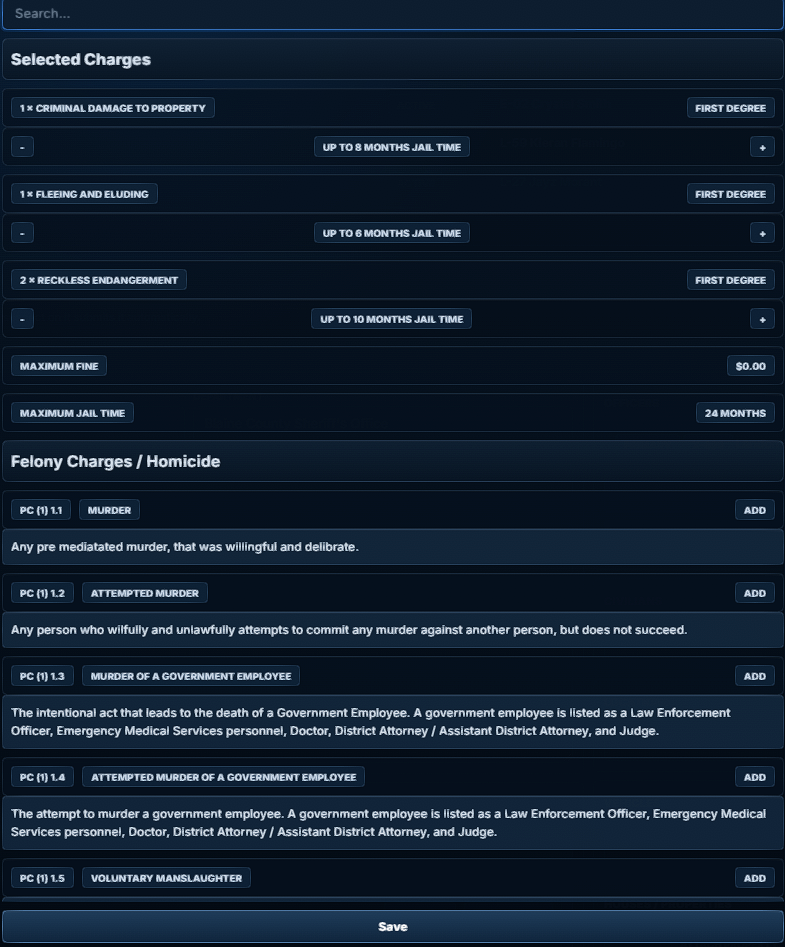
To add a charge, search for it and then click ADD. If multiple counts are needed, you may use the + and - buttons at the top to change counts or remove charges. When complete, click SAVE.
You can right click where it says FIRST DEGREE to change the level of the charge
After that, you will add officers, civilians, locations, and vehicles.
- Officers can be searched for by name, CID, or callsign
- All officer statuses should reflect their actual role
- Statements should be taken from all cooperating civilians
Once everyone has been added to the report, you must attach evidence. To do this, you will click “Attach Evidence” and drag any evidence bags or other collected evidence into the inventory, where it will then display in the report. You may also attach photos taken with the camera item, or bodycam footage by clicking the “ATTACH MEDIA” button.
For reports to be submitted for approval, they must have a report quality score of at minimum 60%. If your report quality is below 60%, click the quality button and it will tell you what to add.
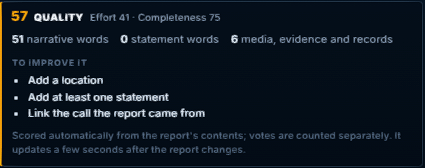
Once report quality is at 60% or higher, it may be submitted for approval by clicking the SUBMIT REPORT button at the top of the page.
